Why Instagram Uses So Much Storage on iPhone 16 Plus
Instagram typically uses 1-3GB of cache and data on your iPhone 16 Plus. Clear Instagram cache by deleting and reinstalling the app.
Unlike photos you take with your camera, app cache builds up invisibly. You may not realize Instagram is consuming gigabytes of your iPhone 16 Plus storage until you check Settings.
What Instagram Stores on Your iPhone 16 Plus
- Cached media — Images and videos you viewed are saved locally for faster loading
- Downloaded content — Offline content and saved posts take real storage space
- App data — Login info, preferences, and usage history
- Temporary files — Processing files that should be cleaned up but often are not
How to Clean Instagram Storage on iPhone 16 Plus
Check Instagram Storage Usage
Go to Settings > General > iPhone Storage and find Instagram in the list to see how much space it uses.
Clear In-App Cache
Open Instagram settings within the app and look for a "Clear Cache" or "Storage" option.
Delete and Reinstall
For the most thorough cleanup, delete Instagram completely and reinstall from the App Store. This removes all cached data.
Clean Photos with PX Cleaner
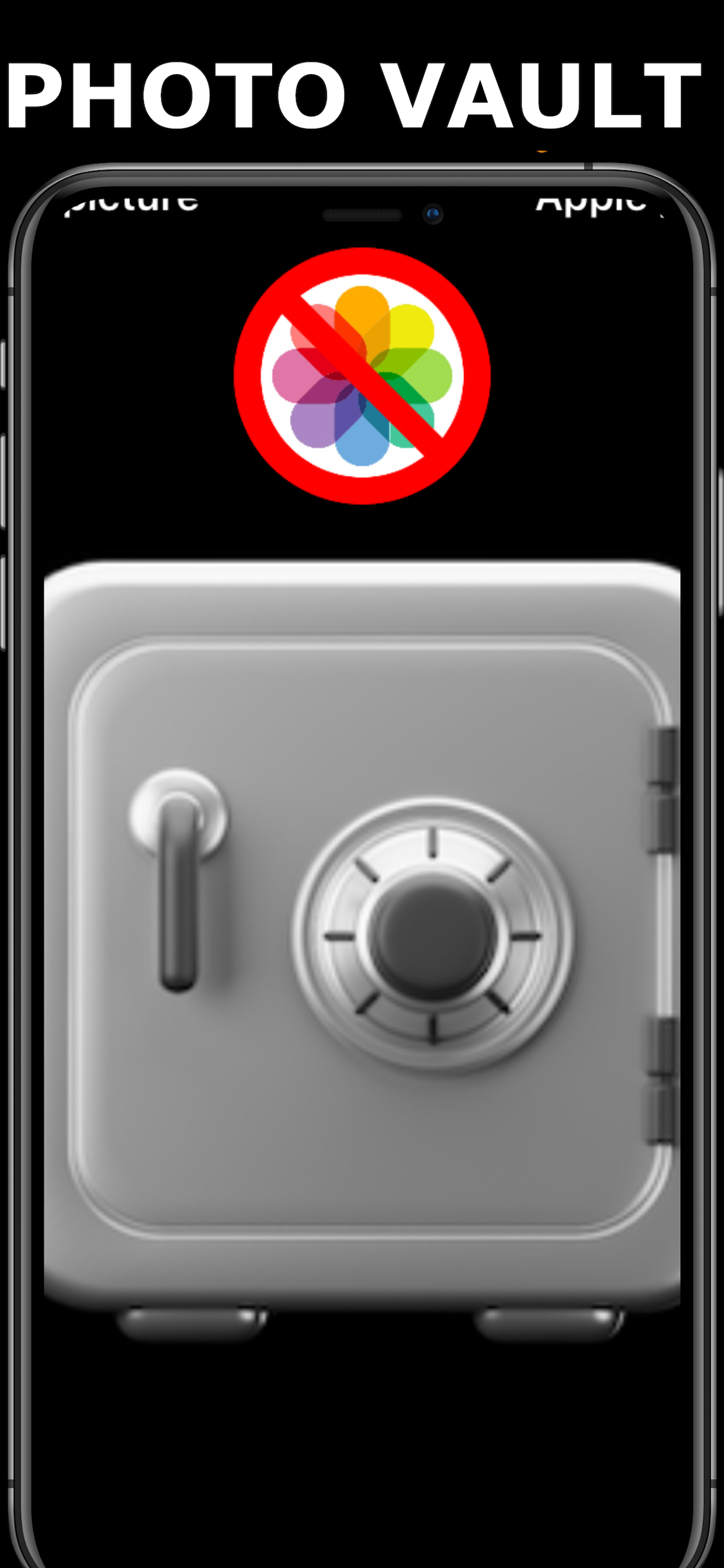
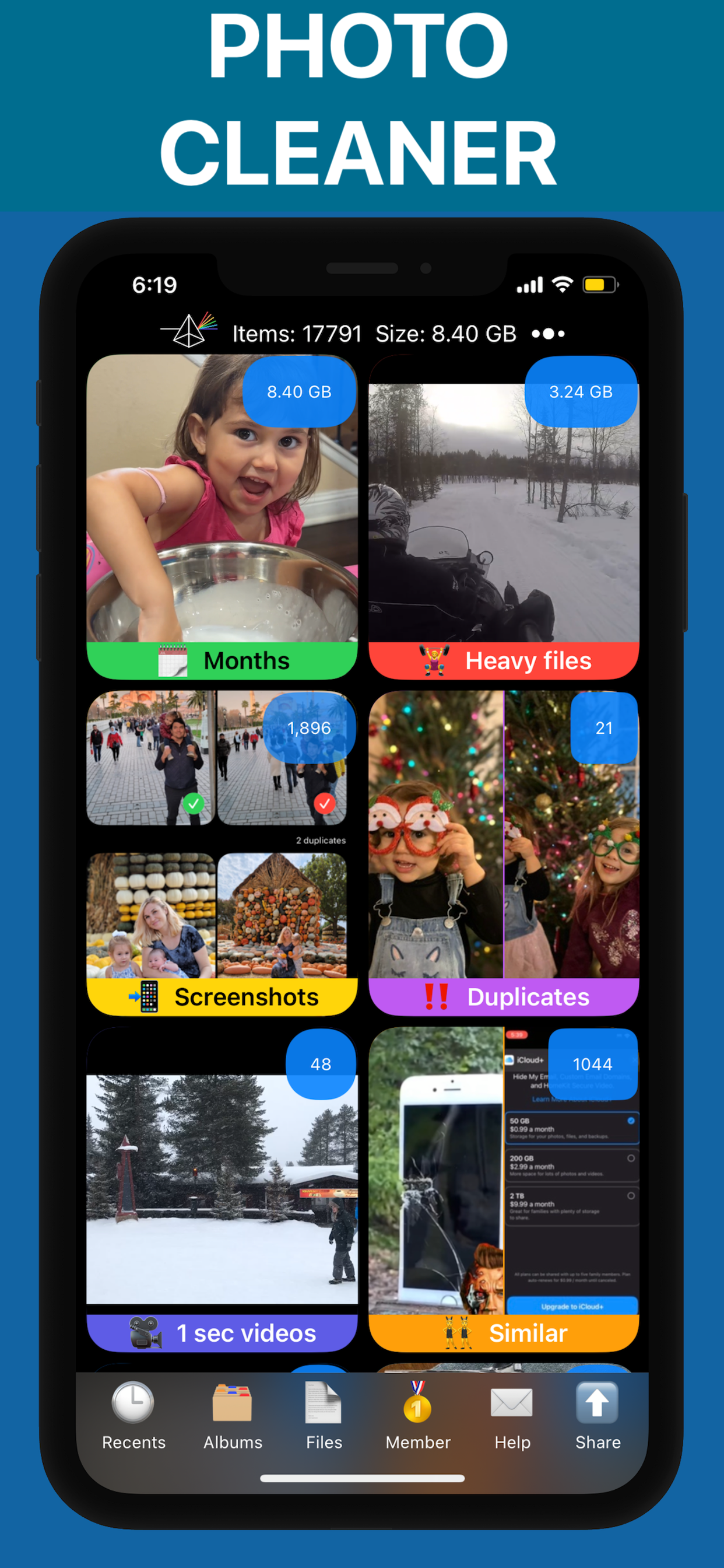
Instagram may have saved photos to your camera roll. Use PX Cleaner to find and remove duplicates.
Why PX Cleaner for iPhone 16 Plus?
AI-Powered
Machine learning detects duplicates, blurry photos, and similar shots automatically.
Swipe to Clean
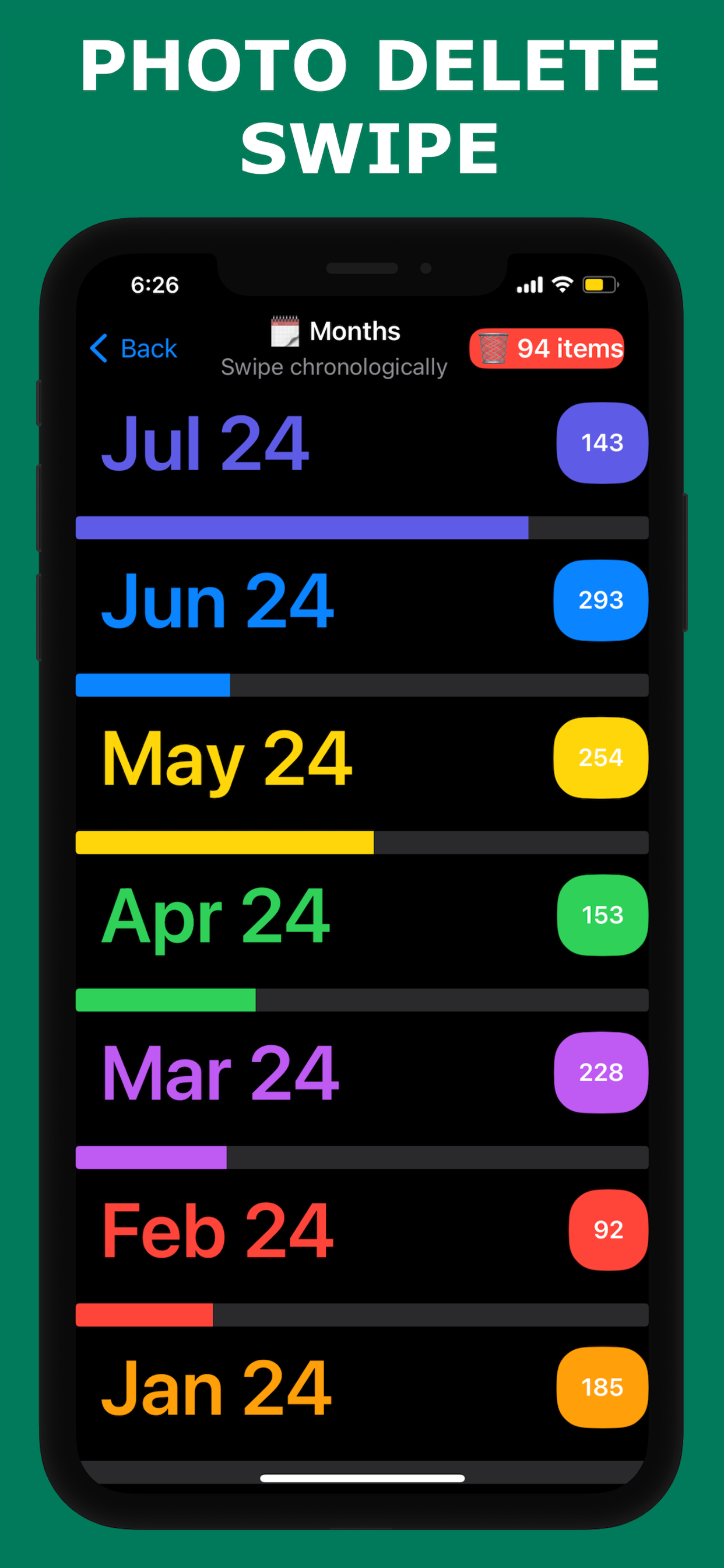
Tinder-style interface makes cleanup fast and intuitive.
100% Private
Everything happens on-device. No photos are uploaded anywhere.
Lightning Fast
Full library scan in 1-3 minutes. Clean up in under 10 minutes.
Frequently Asked Questions
Instagram typically uses 1-3GB on a iPhone 16 Plus. Heavy users may see even more.
Your account data is stored on Instagram's servers. Deleting and reinstalling only removes local cache. You can log back in.
We recommend clearing Instagram cache monthly, or whenever you notice storage getting low on your iPhone 16 Plus.
See PX Cleaner in Action