How to Delete Twitter Cache on iPhone
Step-by-step guide to delete Twitter/X data from your iPhone and free up storage space.
Twitter/X stores data on your iPhone that grows over time. Knowing exactly how to remove it helps keep your device storage clean and efficient.
Step-by-Step Deletion Guide
Check Twitter/X Storage Usage
Go to Settings > General > iPhone Storage and find Twitter/X to see total space used (app + data).
Try In-App Cleanup
Open Twitter/X and check its settings for cache clearing or data management options.
Delete and Reinstall
For the most thorough cleanup, delete Twitter/X completely from your iPhone, then reinstall from the App Store.
Clean Related Photos
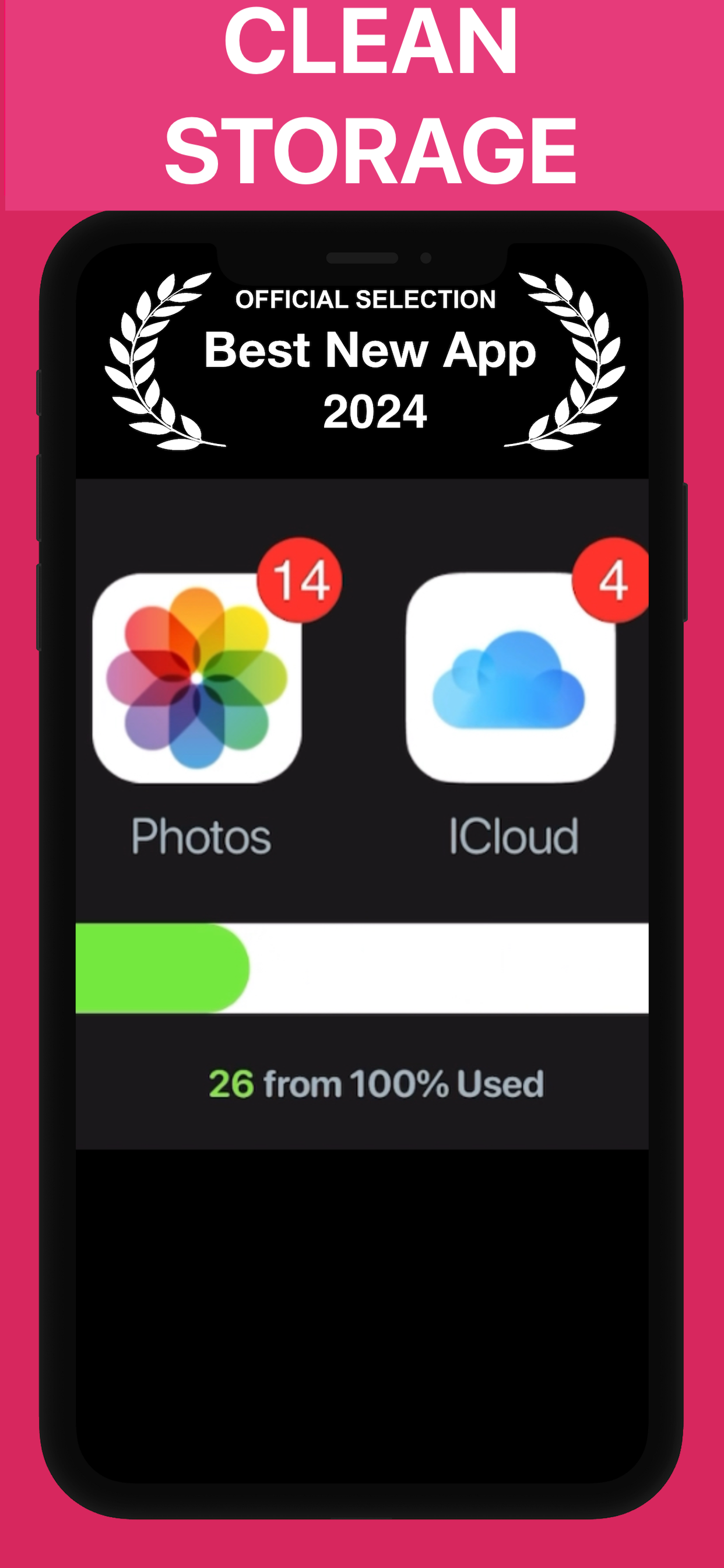
If Twitter/X saved photos to your camera roll, use PX Cleaner to find and remove duplicates and unneeded files.
Why PX Cleaner for your device?
AI-Powered
Machine learning detects duplicates, blurry photos, and similar shots automatically.
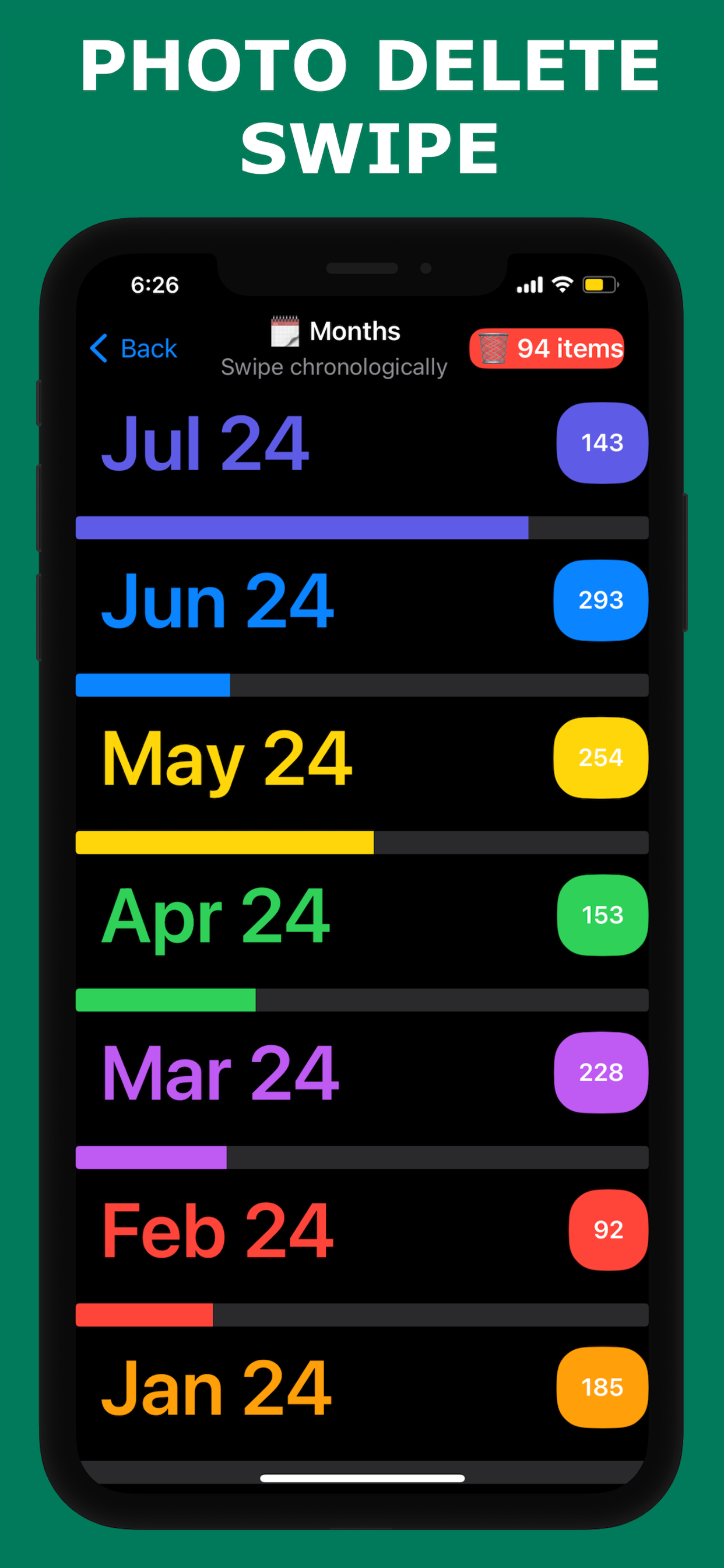
Swipe to Clean
Tinder-style interface makes cleanup fast and intuitive.
100% Private
Everything happens on-device. No photos are uploaded anywhere.
Lightning Fast
Full library scan in 1-3 minutes. Clean up in under 10 minutes.
Frequently Asked Questions
No. Your account data lives on Twitter/X's servers. Deleting the app only removes local cache and downloaded content.
Depending on usage, cleaning Twitter/X data can free up anywhere from a few hundred megabytes to several gigabytes.
See PX Cleaner in Action