How to Delete YouTube Cache on iPhone
Step-by-step guide to delete YouTube data from your iPhone and free up storage space.
YouTube stores data on your iPhone that grows over time. Knowing exactly how to remove it helps keep your device storage clean and efficient.
Step-by-Step Deletion Guide
Check YouTube Storage Usage
Go to Settings > General > iPhone Storage and find YouTube to see total space used (app + data).
Try In-App Cleanup
Open YouTube and check its settings for cache clearing or data management options.
Delete and Reinstall
For the most thorough cleanup, delete YouTube completely from your iPhone, then reinstall from the App Store.
Clean Related Photos
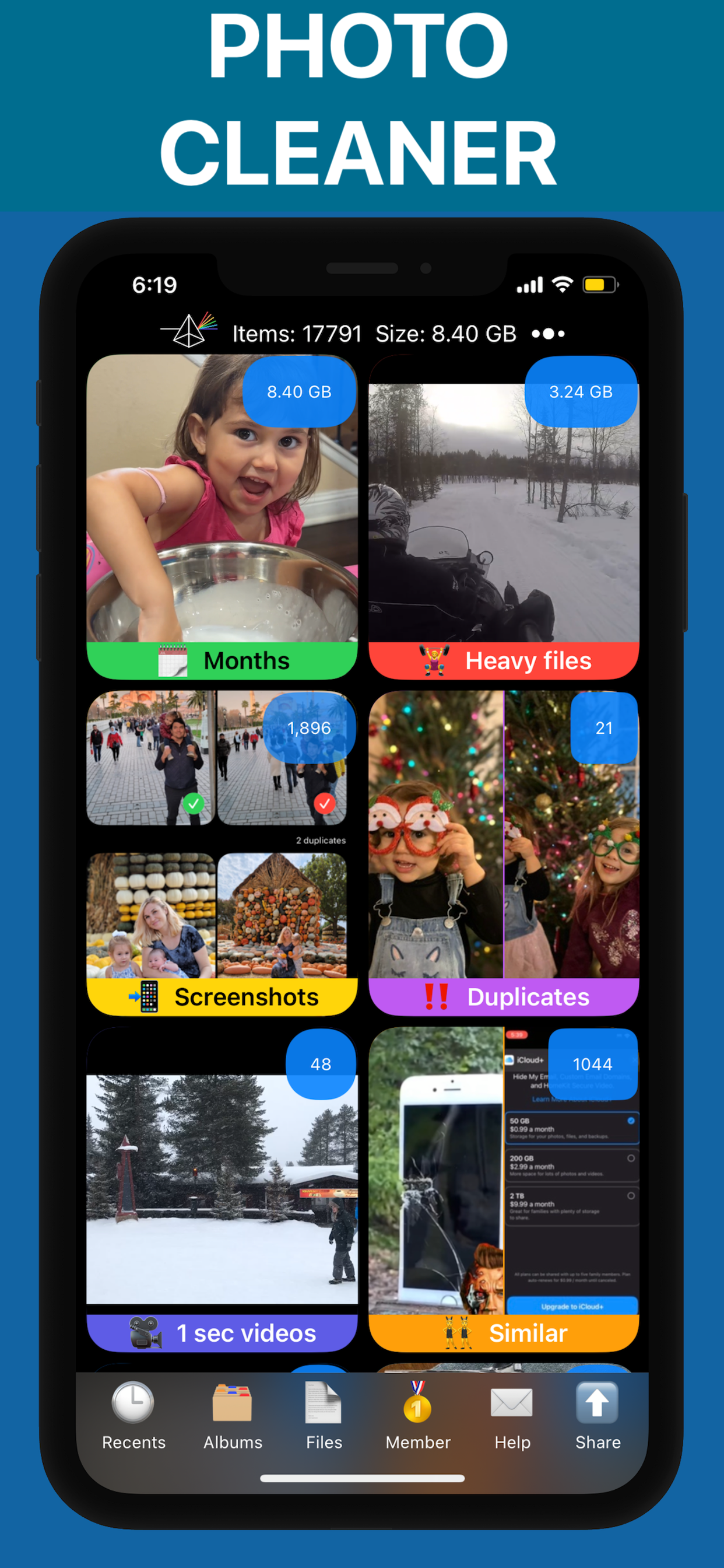
If YouTube saved photos to your camera roll, use PX Cleaner to find and remove duplicates and unneeded files.
Why PX Cleaner for your device?
AI-Powered
Machine learning detects duplicates, blurry photos, and similar shots automatically.
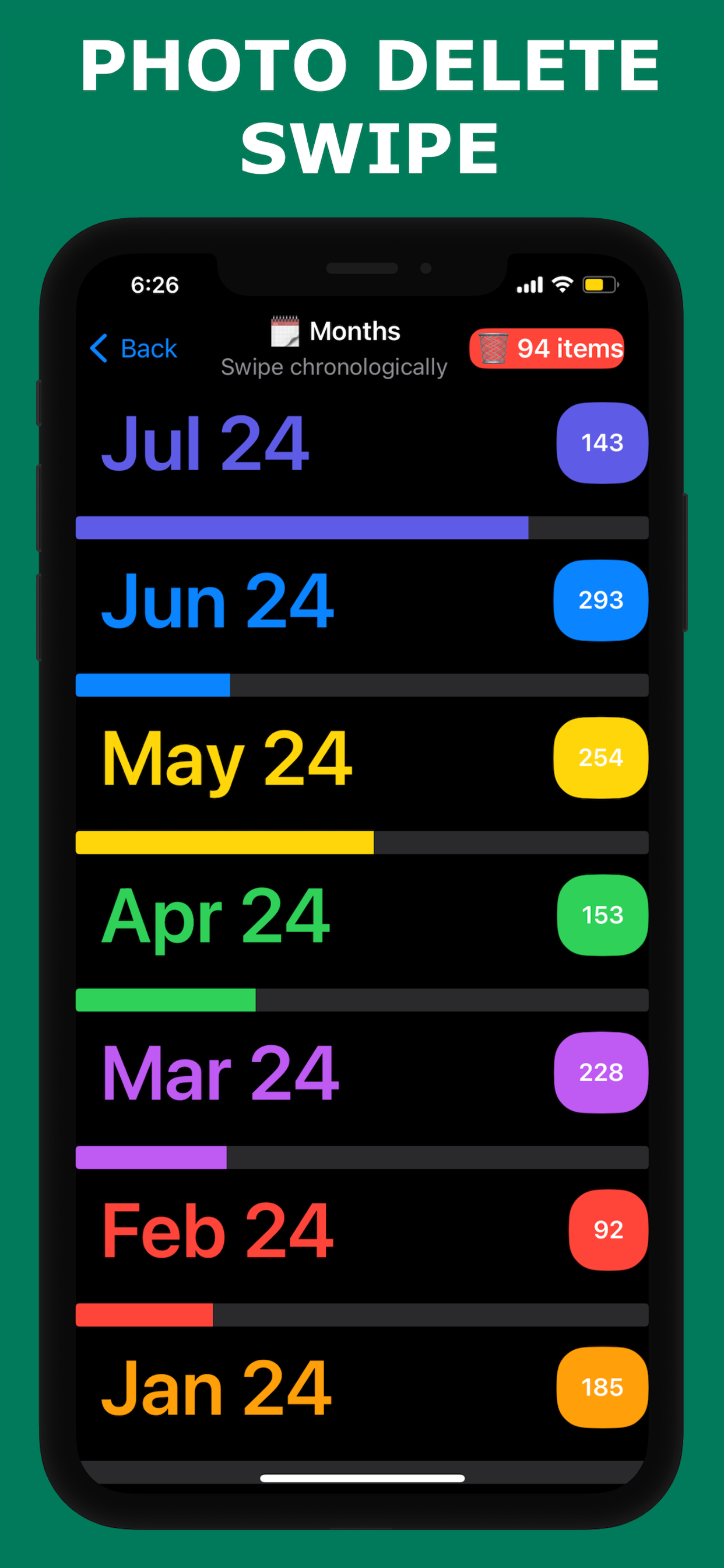
Swipe to Clean
Tinder-style interface makes cleanup fast and intuitive.
100% Private
Everything happens on-device. No photos are uploaded anywhere.
Lightning Fast
Full library scan in 1-3 minutes. Clean up in under 10 minutes.
Frequently Asked Questions
No. Your account data lives on YouTube's servers. Deleting the app only removes local cache and downloaded content.
Depending on usage, cleaning YouTube data can free up anywhere from a few hundred megabytes to several gigabytes.
See PX Cleaner in Action